Features

For your client

  • Client portals A home for each client
  • Project pages Status and next steps
  • Comments Talk beside the work
  • Estimates and approvals Approve in one place
  • Calendar Every date at a glance

Sharing and control

  • View as See what a client sees
  • Public redactions Hide details in public
  • Access Public, or sign-in only
  • Present mode Present in your brand
  • Branded emails Updates in your brand

For your company

  • Invoices Bill from the project
  • Contracts Agree the terms
Everything Link does, on one page. See every feature
Notion

Learn

  • What is Notion? Where your team works
  • How Link works Notion and Link together
  • Connect Notion Link your workspace
Turn your Notion workspace into a clear client experience. Get started
Pricing
Help

Learn

  • Help center Guides for every step
  • Questions and answers The short version
  • Set up Link Sign-up to first portal

Explore

  • Link for Mac Link in its own app
  • About Link Why Link was built
  • Book a demo We'll walk you through
Link is made for teams who want less client-work theatre. Meet the company
Mac app
Log in Get started
Help center

On this page

  1. Private or public
  2. Copy a Link
  3. Send a project by email
  4. What the email looks like
  5. One-click sign-in
  6. Pages inside a project

Share your work

  1. Deliver a project
  2. Share a project with a client
  3. Make a page public
  4. Keep project material in one place
  5. Comment on a project
  6. Present a project as slides
  7. Share a site preview

I use Link to manage

On this page
  1. Private or public
  2. Copy a Link
  3. Send a project by email
  4. What the email looks like
  5. One-click sign-in
  6. Pages inside a project

Share your work

Share a project with a client

Invite your client, then send them the project’s Link. Private work stays private.

Private or public

New clients, projects and pages are private. A private Link opens only for people signed in with access to it. A public Link opens for anyone who has it; see Make a page public.
using.link/MA29rk using.link/MA29rk
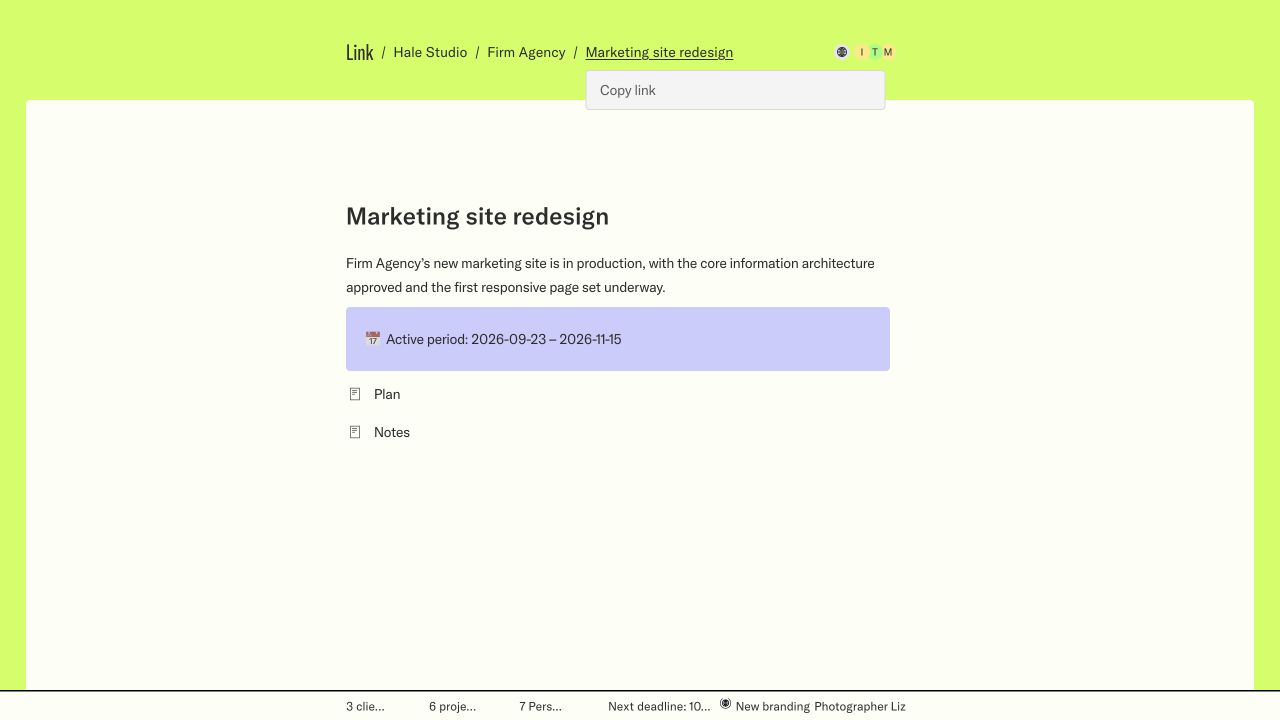
Copy a project’s Link
Copy a project’s Link. Open the project name in the path, then choose Copy link. Copying its address does not change who can open it.Sample workspace · new design · select the screen to enlarge

Copy a Link

Choose Copy link on a client, project or page. The same address is in the Open Link property in Notion.

Send a project by email

  1. 1 Open the project, or the page inside it you want to send.
  2. 2 Open its access panel and choose Send.
  3. 3 Add up to 20 people and, if you like, a message.
  4. 4 Choose Send.

Everyone you send to must be able to open the project. Add new people in the same panel and they get access to the project with the email. Link admins and Link users can send; Link names any address that can’t receive it instead of skipping it.

What the email looks like

Link sends from hello@using.link. On Business and Enterprise with branded emails on, it comes from you, such as “Cecilia from Acme”, with your brand. Replies go to the person who sent it.

One-click sign-in

On Business and Enterprise, client members can open a project you sent straight from the email, without a code. The link works once, for 3 days; after that they sign in with a code as usual. Your own team always uses a code. One-click sign-in is rolling out to workspaces. If you don’t see it yet, it isn’t on for yours.
using.link/MA29rk using.link/MA29rk
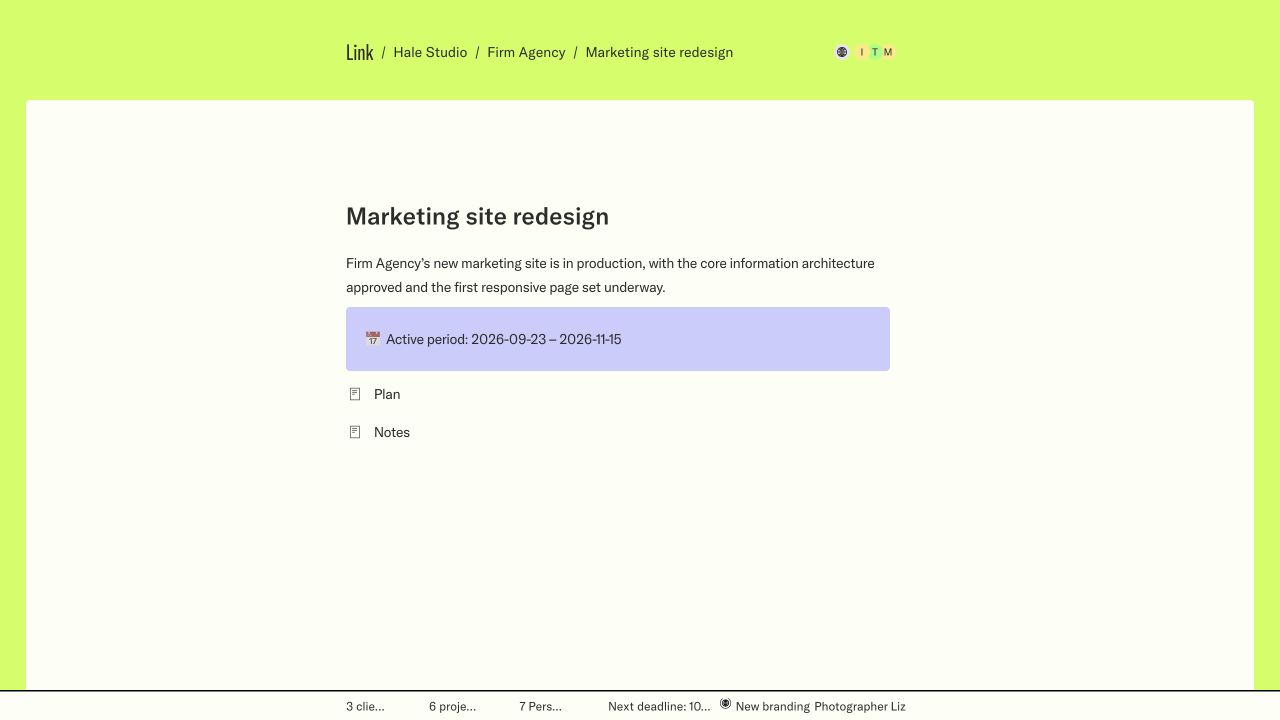
Inside a project
Inside a project. The project page brings the brief, dates and child pages together. The people at the top show who has access.Sample workspace · new design · select the screen to enlarge

Pages inside a project

Every page inside a project has its own Link and its own visibility. Share a page on its own when the client only needs that part, such as a brief or a handover.

Screens show a sample workspace in Link’s new design, which is rolling out. Inline controls are illustrations; use them in your workspace to make a change.

Keep reading

  • Make a page public
  • Invite your team and clients
  • Open a Link you received
Previous Deliver a project Next Make a page public
Made for Notion

Link

  • Features
  • Pricing
  • What is Notion?
  • Link for Mac

Help

  • Help center
  • Questions and answers
  • Book a demo

Company

  • About Link
  • Jobs
  • Data deletion
  • Log in

© 2026 Link, made by 0001. Next-gen client management.

  • Privacy
  • Terms
Setting up your LinkConnecting your workspaceOrganizing your clients and projectsApplying your brandOpening your portalLoading...