Make a page public
Let anyone with the Link open a page without signing in. Check it first, then publish.
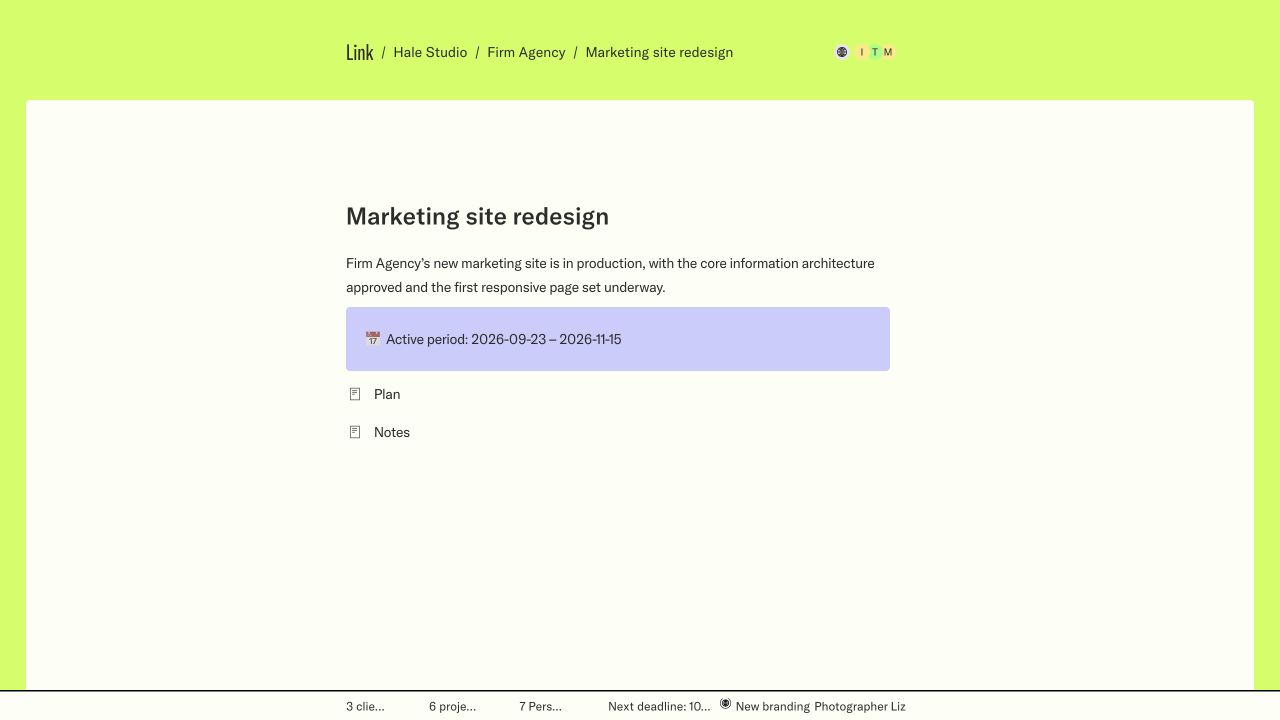
What public means
- The page opens for anyone with its Link, without an account or an invitation.
- People can forward the Link, so treat it as shareable beyond the first person.
- Each client, project and page has its own setting. Publishing one publishes nothing else.
- Private pages inside a public project stay hidden, and visitors never see estimate amounts or comments.
Link admins and client admins can publish their pages.
Preview it as a visitor
- Open the page while signed in.
- Open the page menu, choose View as and then the visitor.
- Read the page from top to bottom. A banner shows you are previewing.
- Close View as to return to your own view.
The preview changes nothing: the page stays private until you publish it. View as is rolling out to workspaces. If you don’t see it yet, it isn’t on for yours. Until then, open the page in a private browser window after publishing.
Publish the page
- Open the page’s access panel and choose Public, or choose Publish page in the visitor preview.
- To let the client’s team sign in from the page, turn on Allow people from the client domain to sign in and check the domain.
- Choose Publish page.
- Open the Link in a private window to see what a visitor sees.
Automatic redaction
On Enterprise, Link can hide sensitive text on public pages before they reach the browser. Turn it on in Settings → Redactions. Automatic redaction is rolling out to workspaces. If you don’t see it yet, it isn’t on for yours.
- Always hidden: email addresses and phone numbers.
- Hidden when you choose them: prices, people’s names, locations, client names and company names.
- Signed-in views and your Notion pages are not changed.
Redaction is a safety net, not a review.
It can miss things, and it does not read text inside images, PDFs, video, files or linked pages. Read the whole page and open every file before you publish.
Make it private again
Set the page back to Private when it should no longer open for everyone. People then need access and sign-in to open it. Making a page private can’t undo what someone already saw, copied or downloaded.
Screens show a sample workspace in Link’s new design, which is rolling out. Inline controls are illustrations; use them in your workspace to make a change.