Product What is Notion? Help
Log in
Product What is Notion? Help
Help Center
Get started
  • Set up Link with Notion
  • Understand the workspace
  • Get started with Link
Deliver client work
  • Deliver a project
  • Keep project material in one place
  • Share a client overview
  • Publish a project page
Work with clients
  • Invite a client
  • Review and approve an estimate
  • Follow project activity
Public pages
  • Share a page publicly
Access & visibility
  • Public and private links
  • Workspace and client roles
  • Control page visibility
Customize Link
  • Brand your workspace
  • Choose workspace terminology
  • Use a branded portal address
Notion connection
  • Connect clients, projects, and people
  • Keep the template safe
  • Troubleshoot a Notion connection
Start here
  • Open a Link you received
  • Sign in to private work
  • Find your way around
Review work
  • Review a project
  • Review and approve an estimate
Access & sharing
  • Share a Link with a teammate

Product

Product overview What is Notion?

Support

FAQ Contact
I’m using Link as
Help Center › Review work

Review a project

Use the project page to understand progress, review shared work, and give a clear response.

6 min read
Review the current version Context first, details second, decision last.
  1. 01
    Status Where the work is
  2. 02
    Scope What is included
  3. 03
    Material Pages and files
  4. 04
    Response One clear next step

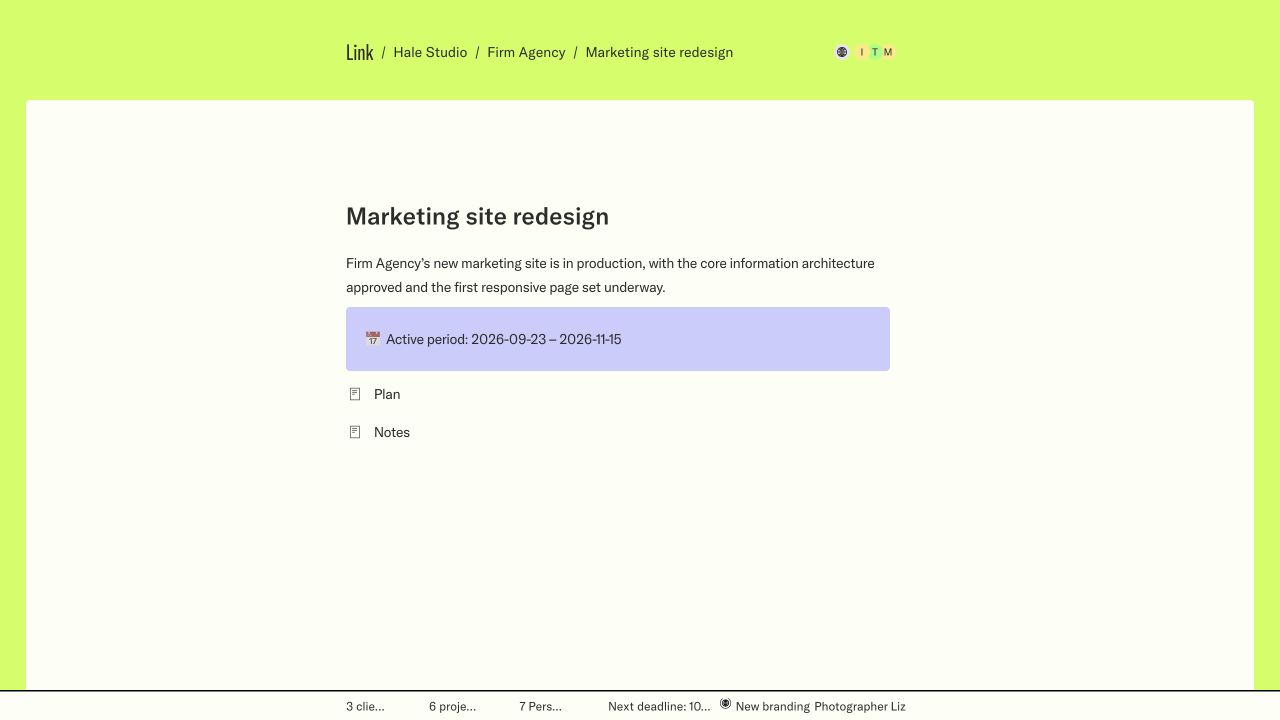
A Link project page is the company’s client-facing version of the work. It can combine scope, status, dates, people, tasks, files, decisions, estimates, and final handover material in one place.

Review the page before replying to an old message.

The page may have changed since the link was first sent. Refresh it and check the current status, dates, and latest notes before making a decision.

Step 1

Read the project header

Confirm the project name, client, status, and delivery period. These details frame everything below and help you notice quickly if you opened the wrong project.

Status describes the current stage, not a promise that every item on the page is finished. Read the latest update or handover section for the practical next step.

Keep the exact Link with the conversation.

It helps the company identify the workspace, project, and page you are asking about.

Step 2

Review the shared material

Scan the headings first, then open the sections and files that matter to your review. This keeps small decisions from getting lost inside background material.

  • Use scope and decisions to confirm what the company is delivering.
  • Use tasks and checklists to understand progress and outstanding input.
  • Use files and references for the actual material under review.
  • Use nested pages when a workstream has its own brief, review, or handover.

Step 3

Give a clear response

Respond in the place the company asked you to use. If a comment field is available, keep the comment specific to the page or estimate. Otherwise, reply through the agreed channel and include the Link.

Separate approval, requested changes, and open questions. A short structured response is easier to act on than one long paragraph covering several decisions.

Approved Name exactly what you are approving and whether any conditions remain.
Changes requested List concrete changes and point to the section or file they concern.
Question Explain what you need to know before you can decide.

Return when the work changes

The same Link can continue to show the project as it moves from estimate to active work, review, and delivery. You do not need a new document for every stage unless the company sends a different page.

Refresh the page when the company says it has been updated. If you cannot find a promised change, confirm that you opened the same project and workspace named in the message.

Quick checklist

Client Help Center Next: Review and approve an estimate

Contents

Read the project headerReview the shared materialGive a clear responseReturn when the work changes Quick checklist

Client work, clearly delivered.

Link 2026

Product

Product overview What is Notion? Help center

Company

Company FAQ Get started

Legal

Privacy policy Terms Data deletion
Setting up your LinkConnecting your workspaceOrganizing your clients and projectsApplying your brandOpening your portalLoading...