Get started — branded portals, live files, and one Link through handover.
Product

For your client

Client portals Project pages

For your company

Invoices Contracts

Explore next-gen client delivery

Client portals Give every client one clear home Project pages Keep status, people, and next steps clear Comments Discuss project work in context Estimates and approvals Review, comment, and approve without another email chain Calendar See projects and delivery windows at a glance
View as Preview exactly what clients and visitors can see Public redactions Hide sensitive details from public pages Access Share publicly or require email sign-in Present mode Present your work in your brand Branded emails Send client updates in your own brand
Solutions

For teams

Studios and agencies Keep every client and project in one clear place Client services teams Share progress without exposing internal tools Consultants and freelancers Give clients a polished home for the work

For your work

Project delivery Keep dates, files, and next steps connected Client communication Discuss decisions where the work lives Estimates and decisions Review and approve without another email chain
Turn your Notion workspace into a clear client experience. See how Link works with Notion ↗
Resources

Learn

What is Notion? See how Notion becomes the working source Help center Find practical guides for using Link FAQ Get quick answers about access, sharing, and setup

Explore

Link for Mac Keep your workspace in a dedicated Mac app Product overview See the complete client workflow About Link Learn why Link was built Get started Set up your workspace now
Link is designed for teams who want less client-work theatre. Meet the company ↗
Pricing Help center
Get started Log in Onboard now
Product Product overview Solutions Pricing Download for Mac
Resources Help center What is Notion? FAQ Company Request a demo ↗
Account Log in Get started
Help Center
Get started
  • Set up Link with Notion
  • Understand the workspace
  • Get started with Link
Deliver client work
  • Deliver a project
  • Keep project material in one place
  • Share a client overview
  • Publish a project page
Work with clients
  • Invite a client
  • Review and approve an estimate
  • Follow project activity
Public pages
  • Share a page publicly
Access & visibility
  • Public and private links
  • Workspace and client roles
  • Control page visibility
Customize Link
  • Brand your workspace
  • Choose workspace terminology
  • Use a branded portal address
Notion connection
  • Connect clients, projects, and people
  • Keep the template safe
  • Troubleshoot a Notion connection
Start here
  • Open a Link you received
  • Sign in to private work
  • Find your way around
Review work
  • Review a project
  • Review and approve an estimate
Access & sharing
  • Share a Link with a teammate

Product

Product overview What is Notion?

Support

FAQ Contact
I’m using Link as
Help Center › Start here

Find your way around

Understand the client overview, project pages, navigation, dates, people, and shared content.

5 min read
The structure stays simple Client overview, project, then the page you need.
  1. 01
    Overview All shared work
  2. 02
    Project Status and delivery
  3. 03
    Pages Briefs and handovers
  4. 04
    Calendar Dates in context

Link organizes your view around the company you work with and the projects they have shared. You only see work that is public or assigned to your signed-in account.

A focused view is intentional.

If colleagues can see different projects, that can be correct. The company can give each client user access to all projects or only selected projects.

Start from the client overview

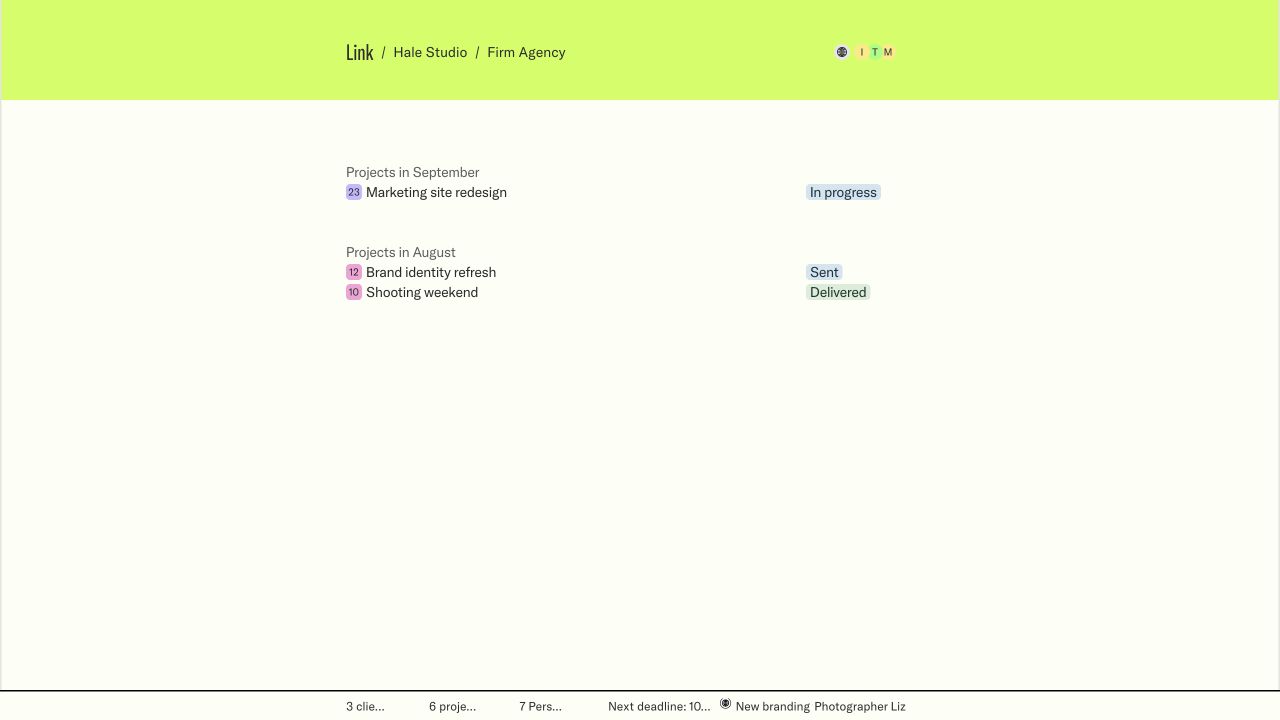
The client overview gathers the active work the company has made available to you. Use it when you want to understand what is happening across projects rather than inside one delivery.

Project cards and dates lead into the detailed pages. If your overview is empty, you may be signed in correctly but not yet assigned to a project.

Keep the exact Link with the conversation.

It helps the company identify the workspace, project, and page you are asking about.

Read a project page

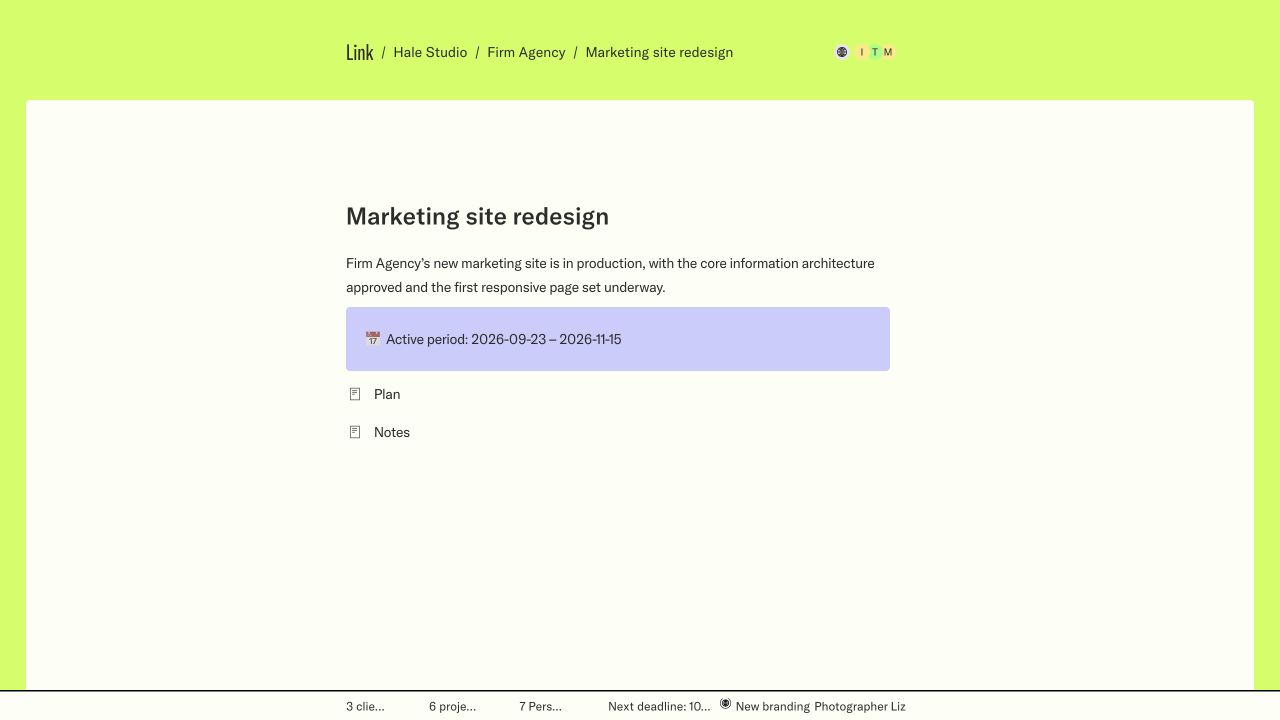
A project page brings the working context together. The exact sections vary because every company can shape its client delivery.

  • Status shows where the work is now.
  • Dates show the planned delivery window and important milestones.
  • People show who is involved and who to contact.
  • Page content can include scope, decisions, tasks, files, references, and handover notes.
  • Nested pages open focused parts of the work without losing the project context.

Move around without losing your place

Use the workspace navigation to return to the client overview or move to another project. Browser back also returns you to the page you came from.

Save the client overview if you need a dependable starting point. Save a specific project or nested page when that is the place you return to most often.

Use dates as context, not a separate plan

Calendar and timeline views collect dates from the projects available to you. Open the project page when you need the meaning behind a date or want to confirm the latest scope.

If a date seems wrong, tell the company which project and date you are looking at. The company manages the source information and can correct the shared view.

Client Help Center Next: Review a project

Contents

Start from the client overviewRead a project pageMove around without losing your placeUse dates as context, not a separate plan
Made for Notion

Product

  • Client portals
  • Project pages
  • Calendar
  • Estimate approvals
  • Comments
  • Access
  • Download for Mac
  • iOS app coming soon

Use cases

  • Studios and agencies
  • Client services teams
  • Consultants
  • Project delivery
  • Client communication
  • Approvals

Resources

  • What is Notion?
  • Product overview
  • Pricing
    • Free
    • Plus
    • Business
    • Enterprise
  • Request a demo ↗
  • Help center
  • FAQ
  • Privacy policy
  • Terms

Company

  • About Link
  • Get started
  • Log in
  • Data deletion

© 2026 Link. Next-gen client management.

Setting up your LinkConnecting your workspaceOrganizing your clients and projectsApplying your brandOpening your portalLoading...