Connect Notion and keep it in sync
See what Link reads from Notion, how often it updates and the few things it writes back.
What Link reads
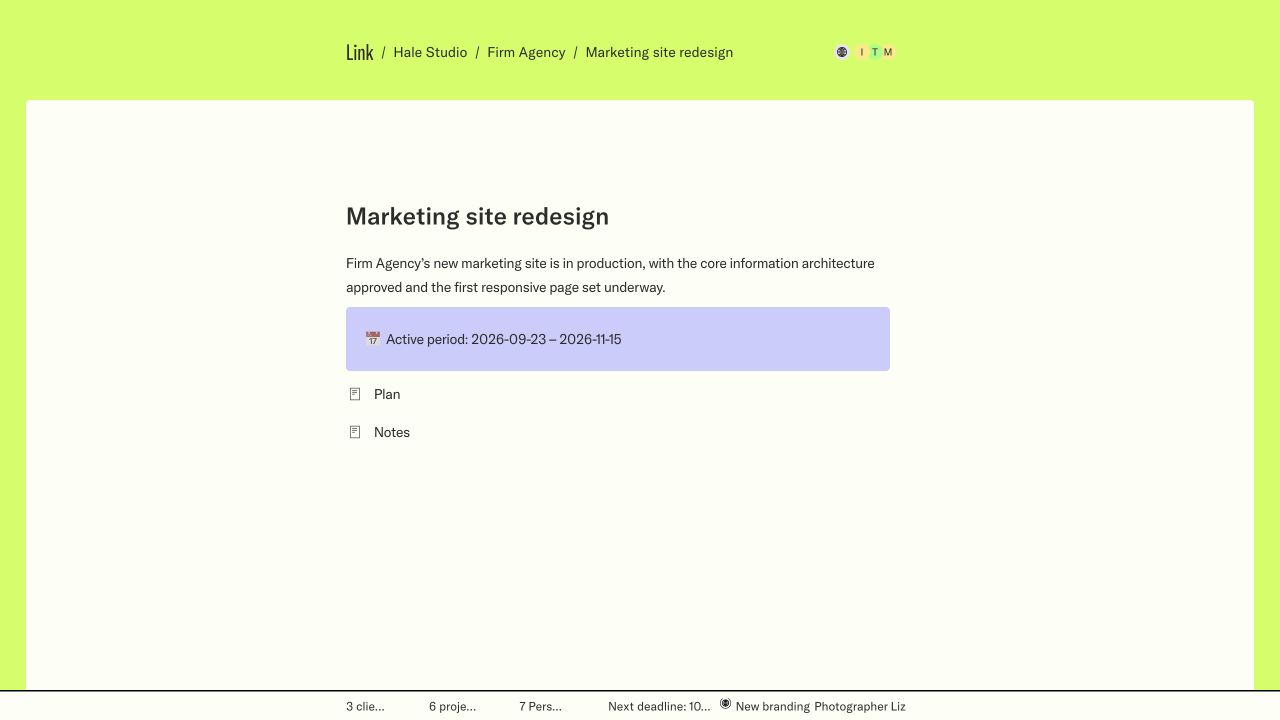
Link reads the Clients, Projects and People databases in your copy of the template, and each project’s page: its text, child pages, to-dos, images, video, files and PDFs. It reads nothing else in your Notion workspace.
When Link updates
- Every 15 minutes, on its own.
- Sooner when Notion tells Link about a change.
- Whenever you choose Sync Notion in Settings → Notion. A manual sync also refreshes every project page.
What Link writes back
Link changes your copy only when someone does one of these in Link:
- Chooses which clients are active: Link ticks Sync to Link on those clients.
- Creates a Link: its address goes into Open Link on the client or project.
- Invites, changes or removes a person: their People row is created, updated or moved to the trash.
- Ticks a to-do on a project page: the to-do is ticked in Notion.
- Approves an estimate: the project’s status becomes Estimate approved.
- Switches between projects and events: the template’s wording follows.
Link never writes to the original template.
Every change goes to your copy, after Link has checked it is your copy.
Removing things
Delete a client, project or person in Notion and it leaves Link on the next sync, with its page content.
A person you invited from Link also has access granted in Link. To remove them for good, remove them in Settings → People as well, or the next sync adds their row back.
Active clients
Each plan allows a number of active clients: one on Free, more on paid plans. Only active clients and their projects appear in the portal. Choose which clients are active in Settings → Billing. Inactive clients keep their data.
Other sources
Link can also read clients and projects from Google Sheets, Airtable, Asana or a Markdown folder on GitHub. These connections are not open to every workspace yet. A workspace reads from one source at a time, and Notion is the one every workspace can use.
If something looks wrong
- Check that you changed your connected copy, not another duplicate of the template.
- Open Settings → Notion and choose Sync Notion.
- If Link asks you to reconnect, connect Notion again and allow access to the same copy. Link keeps your existing copy.
- Check that the client is active. Inactive clients’ projects don’t appear.
Screens show a sample workspace in Link’s new design, which is rolling out. Inline controls are illustrations; use them in your workspace to make a change.