Features

For your client

  • Client portals A home for each client
  • Project pages Status and next steps
  • Comments Talk beside the work
  • Estimates and approvals Approve in one place
  • Calendar Every date at a glance

Sharing and control

  • View as See what a client sees
  • Public redactions Hide details in public
  • Access Public, or sign-in only
  • Present mode Present in your brand
  • Branded emails Updates in your brand

For your company

  • Invoices Bill from the project
  • Contracts Agree the terms
Everything Link does, on one page. See every feature
Notion

Learn

  • What is Notion? Where your team works
  • How Link works Notion and Link together
  • Connect Notion Link your workspace
Turn your Notion workspace into a clear client experience. Get started
Pricing
Help

Learn

  • Help center Guides for every step
  • Questions and answers The short version
  • Set up Link Sign-up to first portal

Explore

  • Link for Mac Link in its own app
  • About Link Why Link was built
  • Book a demo We'll walk you through
Link is made for teams who want less client-work theatre. Meet the company
Mac app
Log in Get started
Help center

On this page

  1. Appearance
  2. Projects or events
  3. Branded emails
  4. Project badges
  5. Remove Link branding

Run your workspace

  1. Choose who sees what
  2. Invite your team and clients
  3. Brand your workspace
  4. Use your workspace address

I use Link to manage

On this page
  1. Appearance
  2. Projects or events
  3. Branded emails
  4. Project badges
  5. Remove Link branding

Run your workspace

Brand your workspace

Put your name, logo, colours and typeface on every page your clients see.
using.link/settings/appearance using.link/settings/appearance
Make the workspace yours
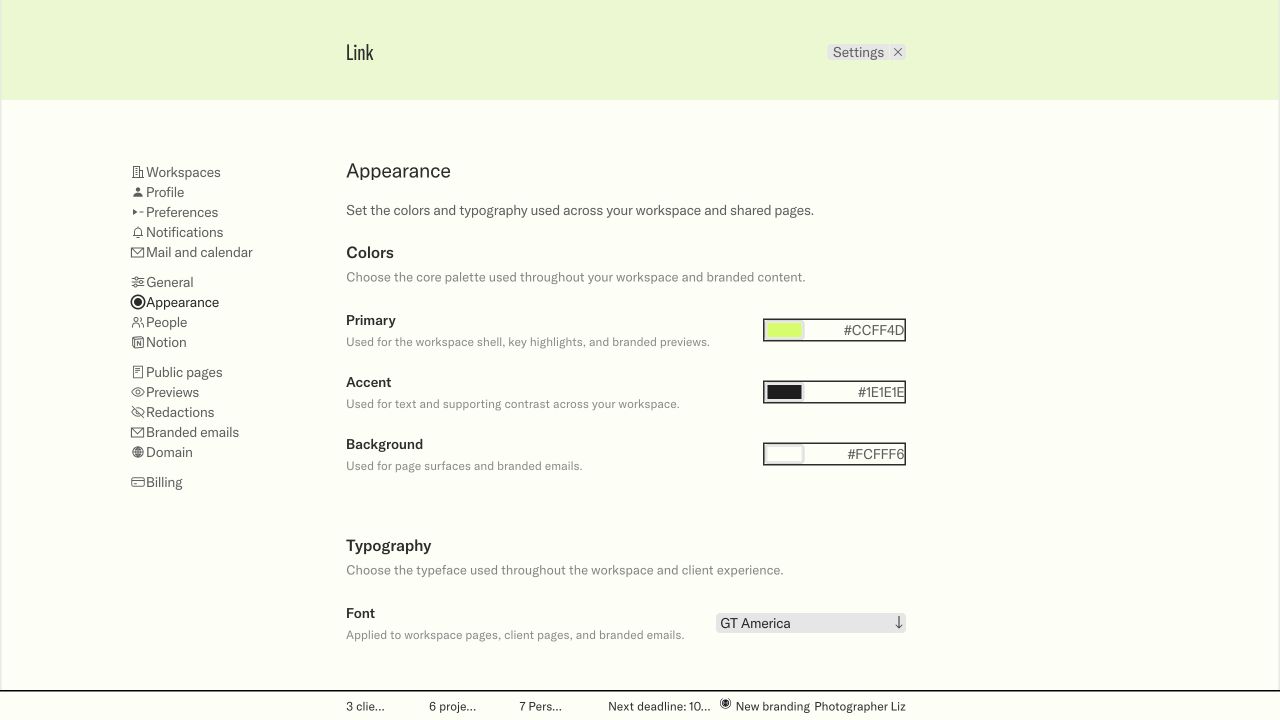
Make the workspace yours. Appearance holds the workspace’s colours, typeface and page preferences.Sample workspace · new design · select the screen to enlarge

Appearance

Link admins set the brand in Settings → Appearance. Changes show as you make them and save on their own.

  • Company name and logo. The logo is an SVG file.
  • Primary, accent and background colours.
  • A background pattern: none, grid, lines or dots, at 1x or 2x.
  • A typeface: GT America, Helvetica Neue, Inter or Georgia.
  • Project pages: strike through finished to-dos, and show dates as “in 3 days”.

The brand appears in the portal, on public pages, in link previews and on loading screens.

Projects or events

If your work is events, turn on Show projects as events in Link in Settings → General. Link says “events” everywhere and rewrites the wording in your Notion copy to match.

Branded emails

On Business and Enterprise, Settings → Branded emails sends invitations and shared projects as “Cecilia from Acme”, with your logo, colours and typeface. You can also send yourself a test email, and have Link admins copied on client emails.

Project badges

On Business and Enterprise, Link can put a short code such as AC-01 before each project’s name, taken from the client’s initials and counting up. A badge stays the same when the project is renamed. Turn it off in Settings → General. Project badges is rolling out to workspaces. If you don’t see it yet, it isn’t on for yours.

Remove Link branding

On Enterprise, Remove Link branding in Settings → General takes Link’s name out of the menu, link previews and loading screens. With a logo uploaded, you can show it in the menu instead.

Screens show a sample workspace in Link’s new design, which is rolling out. Inline controls are illustrations; use them in your workspace to make a change.

Keep reading

  • Use your workspace address
  • Manage your plan and billing
Previous Invite your team and clients Next Use your workspace address
Made for Notion

Link

  • Features
  • Pricing
  • What is Notion?
  • Link for Mac

Help

  • Help center
  • Questions and answers
  • Book a demo

Company

  • About Link
  • Jobs
  • Data deletion
  • Log in

© 2026 Link, made by 0001. Next-gen client management.

  • Privacy
  • Terms
Setting up your LinkConnecting your workspaceOrganizing your clients and projectsApplying your brandOpening your portalLoading...